


 The TechQuilt
 Introduction
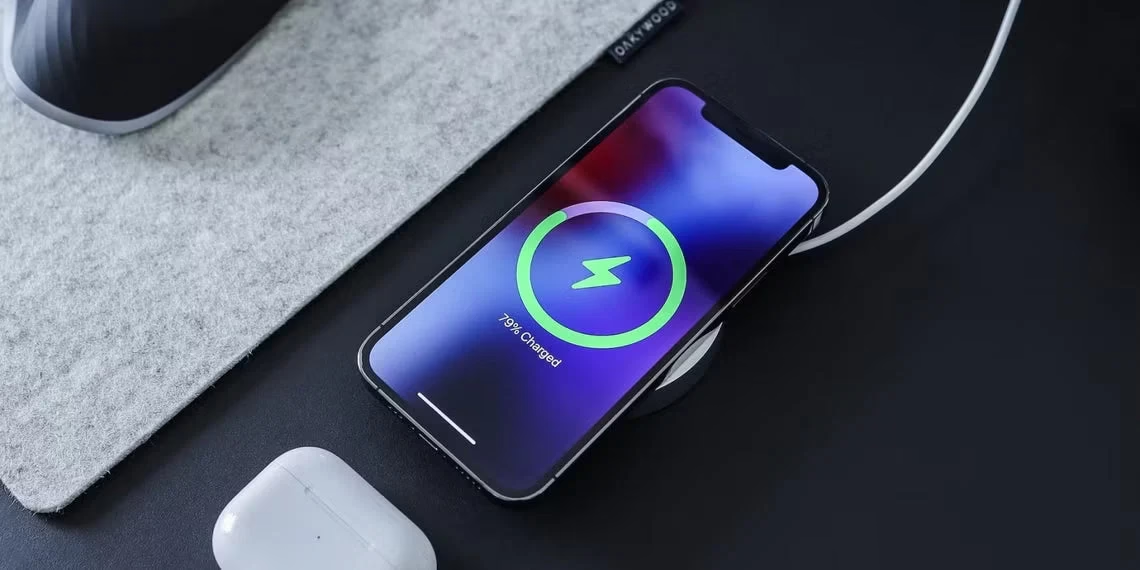
Charging your iPhone quickly is essential in today’s fast-paced world. While most people rely on fast chargers, very few know that the right settings can significantly improve faster iPhone charging without spending extra money.
In this guide, you’ll discover practical tweaks, internal optimization tips, and expert-backed methods to charge your iPhone faster and more efficiently.
Why Faster iPhone Charging Matters
Slow charging can disrupt your daily routine, especially when you’re in a hurry. Optimizing your iPhone not only improves charging speed but also enhances battery health.
If you’re facing overheating or charging-related issues, check out our detailed guide on iPhone overheating fixes.
1. Enable Airplane Mode for Faster iPhone Charging
One of the most effective ways to achieve faster iPhone charging is by turning on Airplane Mode.
Benefits:
- Stops network usage
- Reduces battery drain
- Speeds up charging instantly
How to enable:
Swipe down → Tap Airplane icon
2. Turn Off Background App Refresh
Background processes silently consume power.
Steps:
- Settings → General → Background App Refresh → OFF
This ensures your device focuses entirely on charging.
Related read: Why your iPhone battery drains fast
3. Reduce Brightness or Turn Off Screen
Your display uses significant battery power.
Best practice:
- Keep screen OFF while charging
- Lower brightness if in use
This improves faster iPhone charging efficiency immediately.
4. Disable Optimized Battery Charging (When Needed)
Apple’s Optimized Charging slows charging after 80%.
Steps:
- Settings → Battery → Battery Health → Turn OFF
Use this only when you need urgent faster iPhone charging.
5. Turn Off Location Services
GPS tracking drains battery continuously.
Steps:
- Settings → Privacy → Location Services → OFF
Less drain = faster charging.
6. Enable Low Power Mode
Low Power Mode is one of the best hidden tricks.
Steps:
- Settings → Battery → Low Power Mode → ON
Advantages:
- Reduces background activity
- Speeds up charging
7. Disable Wi-Fi, Bluetooth & Mobile Data
Even without Airplane Mode, turning these off helps.
Turn off:
- Wi-Fi
- Bluetooth
- Mobile Data
This minimizes power consumption and supports faster iPhone charging.
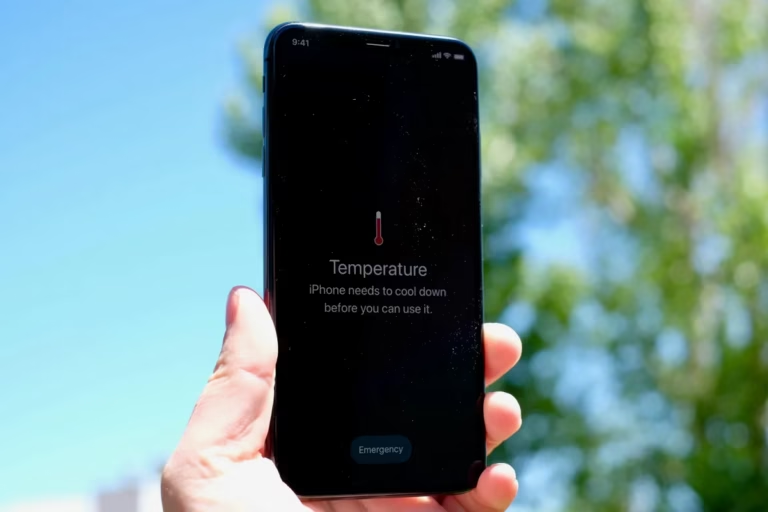
8. Avoid Heat While Charging
Heat slows charging speed automatically.
Tips:
- Remove phone case
- Avoid sunlight
- Charge in a cool place
Also read: iPhone not charging properly? 8 fixes
9. Use Fast Charging Accessories
Settings alone aren’t enough—hardware matters too.
Recommended:
- 20W+ adapter
- Apple-certified cable
This can charge your iPhone up to 50% in 30 minutes.
10. Turn Off Notifications
Notifications wake your screen and use power.
Steps:
- Settings → Notifications → Disable unnecessary apps
Bonus Tip: Turn Off Your iPhone
For maximum faster iPhone charging:
- Power OFF your device
This stops all background processes completely.
Common Mistakes to Avoid
Avoid these to maintain optimal charging speed:
- Using low-quality cables
- Charging via laptop USB
- Gaming while charging
- Keeping too many apps open
Best Settings Combination for Faster iPhone Charging
For maximum speed, use this setup:
- Airplane Mode ON
- Low Power Mode ON
- Screen OFF
- Fast charger (20W+)
- Cool environment
FAQs
How to enable faster iPhone charging?
Turn on Airplane Mode, enable Low Power Mode, and use a fast charger.
Does Low Power Mode help in faster iPhone charging?
Yes, it reduces background usage and improves charging speed.
Is it safe to disable optimized charging?
Yes, but only temporarily when you need faster charging.
Why is my iPhone charging slowly?
It could be due to background apps, heat, or poor charging accessories.
Conclusion
Getting faster iPhone charging is all about smart optimization. By enabling the right settings and avoiding common mistakes, you can drastically reduce charging time.
Combine software tweaks with proper accessories, and your iPhone will charge faster, safer, and more efficiently every time.