


 The TechQuilt
 Introduction
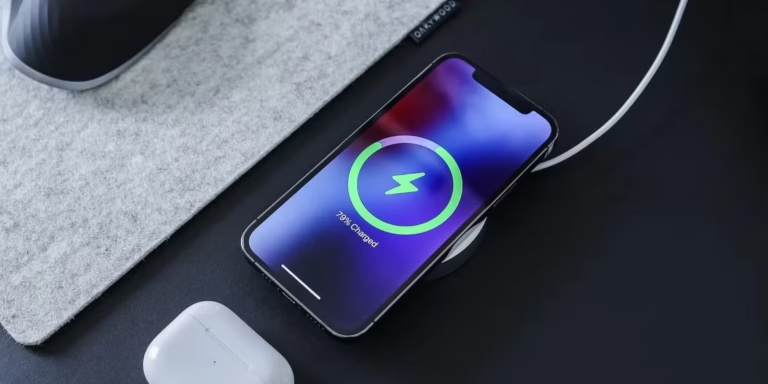
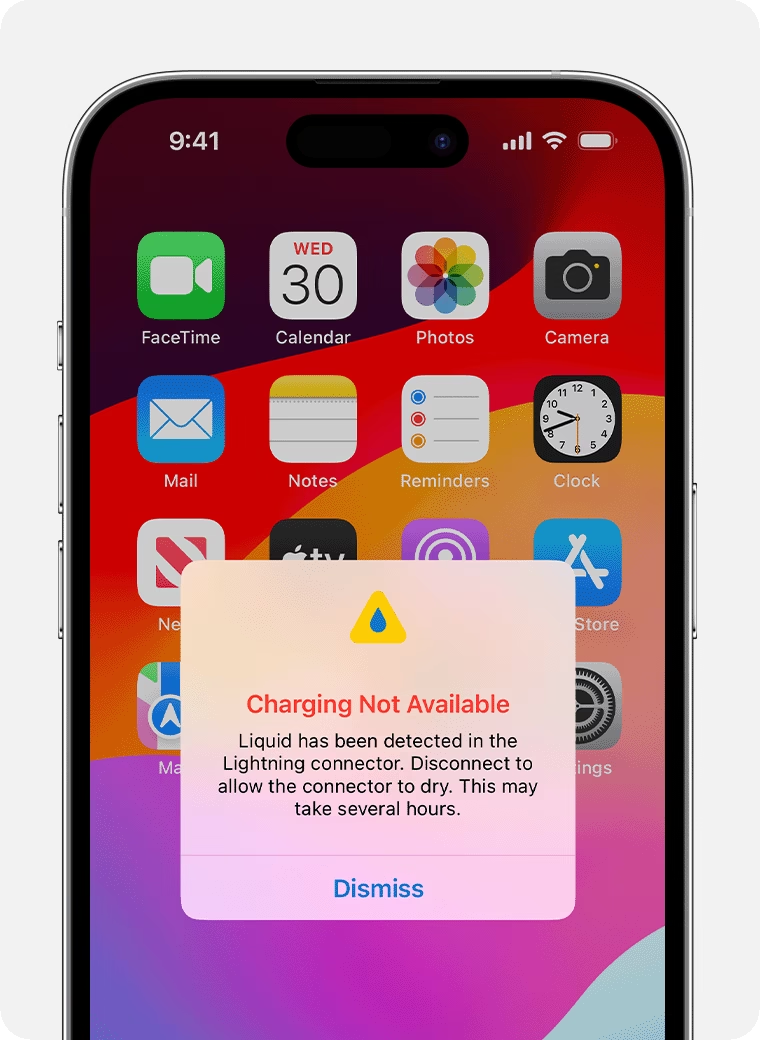
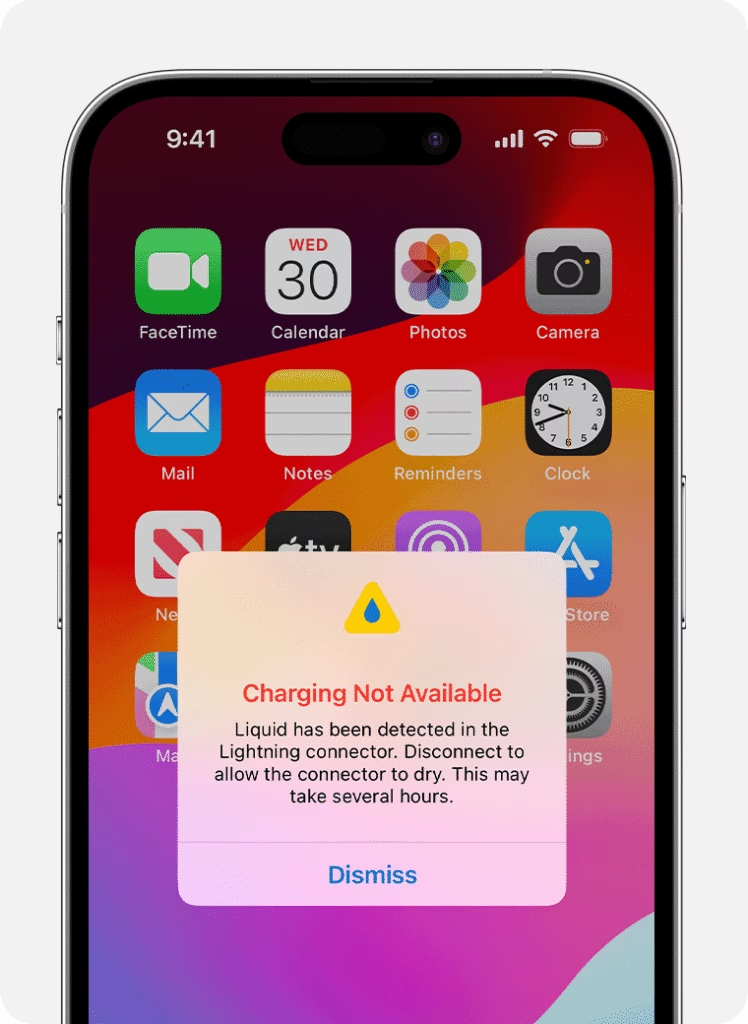
If your iPhone not charging properly, you’re not alone. Many users face this frustrating issue where their iPhone charges slowly, stops intermittently, or doesn’t charge at all. This problem can occur due to hardware issues, software glitches, or even simple factors like dust in the charging port.
The good news is that in most cases, you don’t need to replace your device. With the right steps, you can easily fix the issue and get your iPhone charging normally again. In this guide, we’ll explain the common causes and share 8 proven fixes for iPhone not charging properly.
Table of Contents
- Why your iPhone is not charging properly
- 8 fixes that actually work
- When to worry
- FAQs
Why Is Your iPhone Not Charging Properly?
Before jumping into the fixes, here are some common reasons:
- Dirt or debris in the charging port
- Faulty charging cable or adapter
- Software bugs or iOS glitches
- Battery health issues
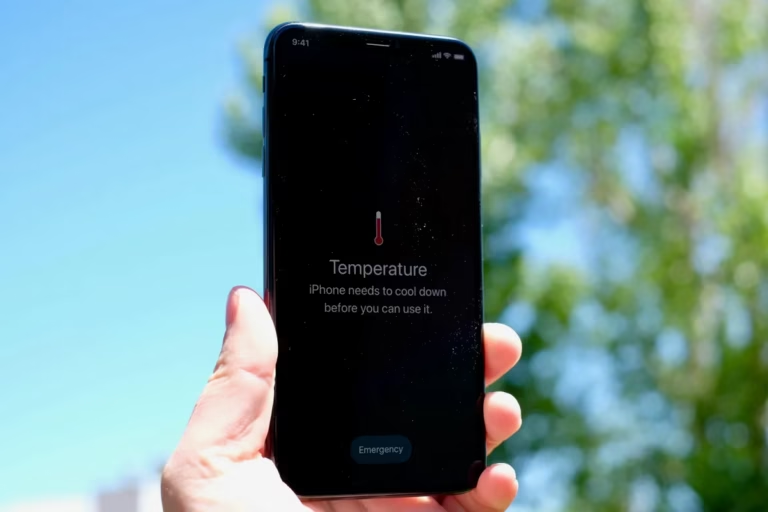
- Overheating while charging
If your phone is also heating up, check our guide on iPhone overheating fix.
8 Fixes for iPhone Not Charging Properly
Fix 1: Check Your Charging Cable and Adapter
Sometimes the issue is not with your phone but with your accessories.
What to do:
- Use an original Apple or certified cable
- Try a different charger or adapter
- Avoid damaged or duplicate cables
Fix 2: Clean the Charging Port
Dust and lint can block the connection between the cable and port.
Steps:
- Use a soft brush or toothpick
- Gently remove debris
- Do not use water or metal objects
Fix 3: Restart Your iPhone
A simple restart can fix temporary software glitches.
Steps:
- Press and hold the power button
- Slide to power off
- Turn it back on after a few seconds
Fix 4: Avoid Using iPhone While Charging
Using your device during charging can slow down or interrupt the process.
Tip:
- Let your phone charge without heavy usage
Fix 5: Check for iOS Updates
Software bugs can affect charging performance.
Steps:
- Go to Settings → General → Software Update
- Install the latest version
If your update is stuck, check our iOS update stuck fix guide.
Fix 6: Turn Off Optimized Battery Charging
This feature may stop charging at 80% temporarily.
Steps:
- Settings → Battery → Battery Health & Charging
- Disable “Optimized Battery Charging”
Learn more about this in our guide on why iPhone stops charging at 80%.
Fix 7: Check Battery Health
A degraded battery may not charge properly.
Steps:
- Settings → Battery → Battery Health
If your battery health is dropping fast, read iPhone battery health issues and fixes.
Fix 8: Reset All Settings
If nothing works, resetting settings can fix deeper issues.
Steps:
- Settings → General → Transfer or Reset iPhone
- Tap Reset → Reset All Settings
When Should You Be Concerned?
You should consider professional help if:
- Your iPhone doesn’t charge at all
- Charging stops randomly
- Battery drains very quickly
If your battery drains overnight, check our guide on iPhone battery draining fast overnight fix.
Additional Tips to Avoid Charging Issues
- Avoid using cheap or duplicate chargers
- Keep your charging port clean
- Don’t expose your phone to extreme heat
- Charge your phone in a cool environment
FAQs
Why is my iPhone not charging properly even with a new cable?
This could be due to a dirty charging port or a software issue.
Why does my iPhone charge on and off?
Loose connections, damaged cables, or port issues can cause this.
Is slow charging a problem?
Not always. It can happen due to background apps or low-power chargers.
Conclusion
The iPhone not charging properly issue can be frustrating, but it is usually easy to fix. By checking your charging accessories, cleaning the port, updating your software, and managing settings, you can resolve most charging problems without professional help.
If the issue persists after trying all the fixes, it may indicate a hardware problem, and you should consider getting your device checked. Otherwise, these simple solutions should help restore normal charging and keep your iPhone running smoothly.