


 The TechQuilt
 Introduction
Waking up to find your iPhone battery dropped significantly overnight—even when you didn’t use it—can be frustrating and confusing. You expect your phone to stay mostly idle while you sleep, so seeing a sudden drop in battery percentage can feel like something is wrong with your device. This is a common issue faced by many iPhone users, especially after iOS updates or changes in system settings that run quietly in the background.
The good news? In most cases, this problem is completely fixable and does not mean your battery is damaged or needs immediate replacement. Often, it’s caused by hidden settings, background activity, or temporary software glitches that can be easily corrected. In this guide, we’ll explain why this happens and walk you through 9 proven fixes that actually work, helping you restore your iPhone’s battery performance and avoid overnight drain.
Why Your iPhone Battery Drains Overnight
Before jumping into fixes, it’s important to understand the root causes:
- Background apps running continuously
- Location services active for multiple apps
- Poor network signal draining power
- iOS bugs or update issues
- Push notifications waking the screen
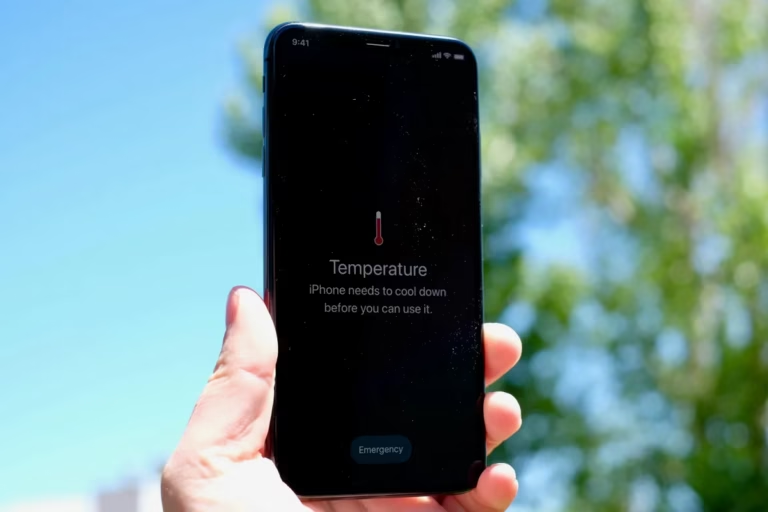
If your phone is also heating up, you may want to check our guide on iPhone overheating issues and fixes.
9 Fixes to Stop iPhone Battery Drain Overnight
1. Turn Off Background App Refresh
Apps running in the background consume battery even when not in use.
Steps:
- Go to Settings → General → Background App Refresh
- Turn it OFF or limit it to Wi-Fi only
2. Disable Location Services for Unnecessary Apps
Location tracking can silently drain the battery.
Steps:
- Go to Settings → Privacy & Security → Location Services
- Set unnecessary apps to “While Using” or “Never”
3. Turn On Low Power Mode at Night
Low Power Mode reduces background activity and extends battery life.
Steps:
- Settings → Battery → Enable Low Power Mode
For more long-term improvements, check our guide on how to improve iPhone battery life instantly.
4. Check Battery Usage to Find Problem Apps
Some apps consume more battery than others.
Steps:
- Settings → Battery → View Battery Usage
Uninstall or limit apps consuming excessive battery.
5. Disable Push Mail
Constant email syncing can drain the battery overnight.
Steps:
- Settings → Mail → Accounts → Fetch New Data
- Set to Manual or Fetch
6. Turn Off Raise to Wake
Your screen might be turning on frequently without you realizing.
Steps:
- Settings → Display & Brightness → Turn OFF “Raise to Wake”
7. Update iOS (If Bug Exists)
Battery drain issues often occur after buggy updates.
Steps:
- Settings → General → Software Update
8. Reset All Settings (Last Resort)
If nothing works, resetting settings can fix hidden issues.
Steps:
- Settings → General → Transfer or Reset iPhone → Reset → Reset All Settings
9. Check Battery Health
If your battery health is low, performance will drop.
Steps:
- Settings → Battery → Battery Health & Charging
If below 80%, consider replacement.
Learn more in our detailed guide on why iPhone battery health drops fast.
Pro Tips to Prevent Overnight Battery Drain
- Keep Wi-Fi ON instead of mobile data
- Avoid weak network areas
- Turn on Airplane Mode while sleeping
- Close unnecessary apps before bed
When Should You Replace Your Battery?
You should consider replacing your battery if:
- Battery health is below 80%
- Phone shuts down randomly
- Charging issues persist
If your device is also charging slowly, read our guide on iPhone charging slow fixes.
FAQs
Why does my iPhone lose 20% battery overnight?
This is usually caused by background apps, poor network signal, or iOS bugs.
Is overnight battery drain normal?
A small drop (2–5%) is normal. Anything above that indicates an issue.
Does Low Power Mode help overnight?
Yes, it significantly reduces background activity and saves battery.
Conclusion
iPhone battery draining overnight is a common but fixable issue. By adjusting a few settings and identifying the root cause, you can significantly improve your battery performance.
Start with the simple fixes first, and if the issue persists, check battery health or reset settings.
With the right optimizations, your iPhone battery should easily last through the night without major drops.